> ## Documentation Index
> Fetch the complete documentation index at: https://drippi.mintlify.site/llms.txt
> Use this file to discover all available pages before exploring further.
# Lead Scraper
> The lead scraper enables you to import leads from either the Likers and/or Retweeters of a post, or from the Followers and/or Following of an account
## How To Use Drippi's Lead Scraping Features (Video)
[https://www.youtube.com/watch?v=8-bmJl7h8X8](https://www.youtube.com/watch?v=8-bmJl7h8X8)
## Data Sources
Drippi's Lead Scraper allows you to scrape from a Tweet Source, or from an Account Source.
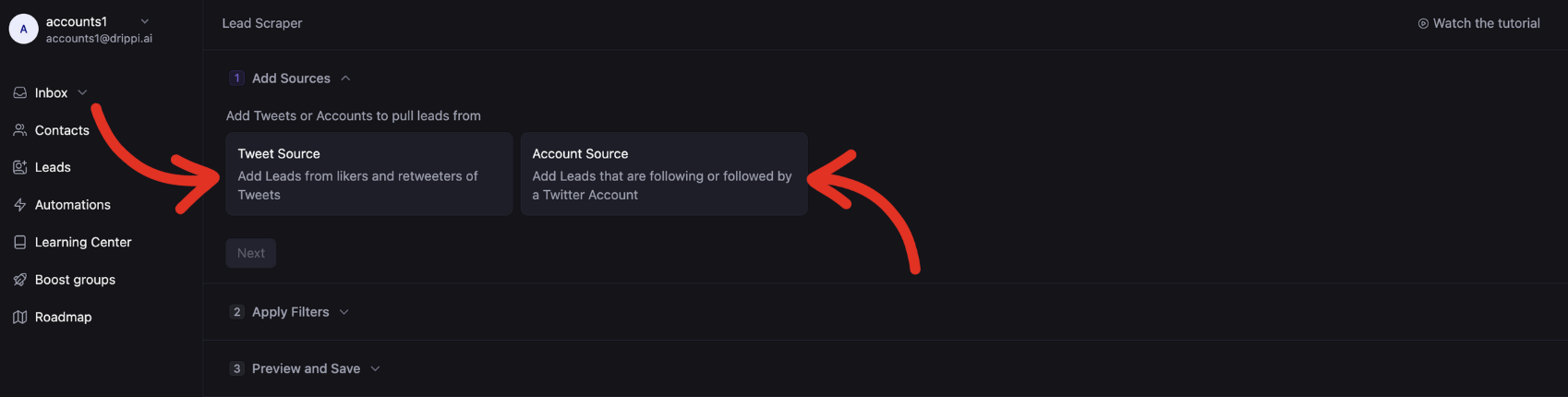 ### Tweet Sources
In the space provided, add a link to any tweet of your choice. Then select the data you want to include, and then hit *add source*.
### Tweet Sources
In the space provided, add a link to any tweet of your choice. Then select the data you want to include, and then hit *add source*.
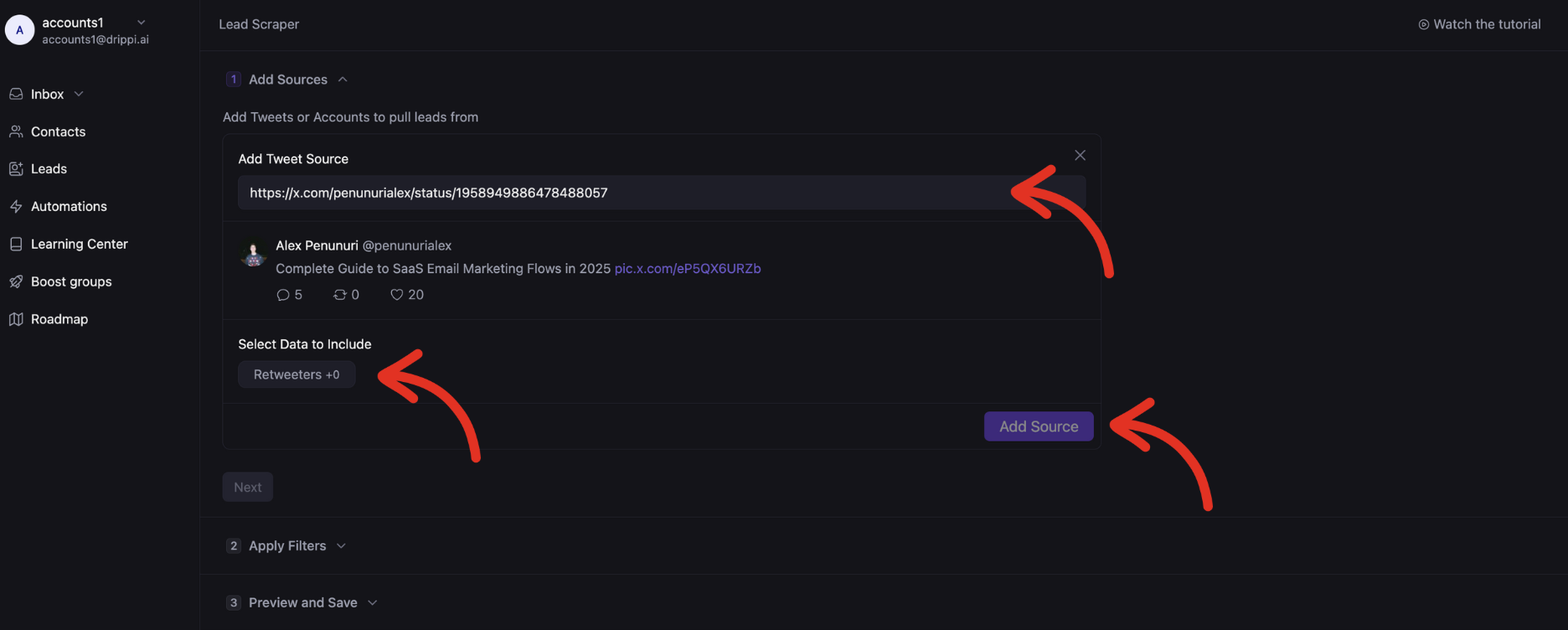 You can then add as many other Tweet or Account sources as you'd like. Once done, hit *next.*
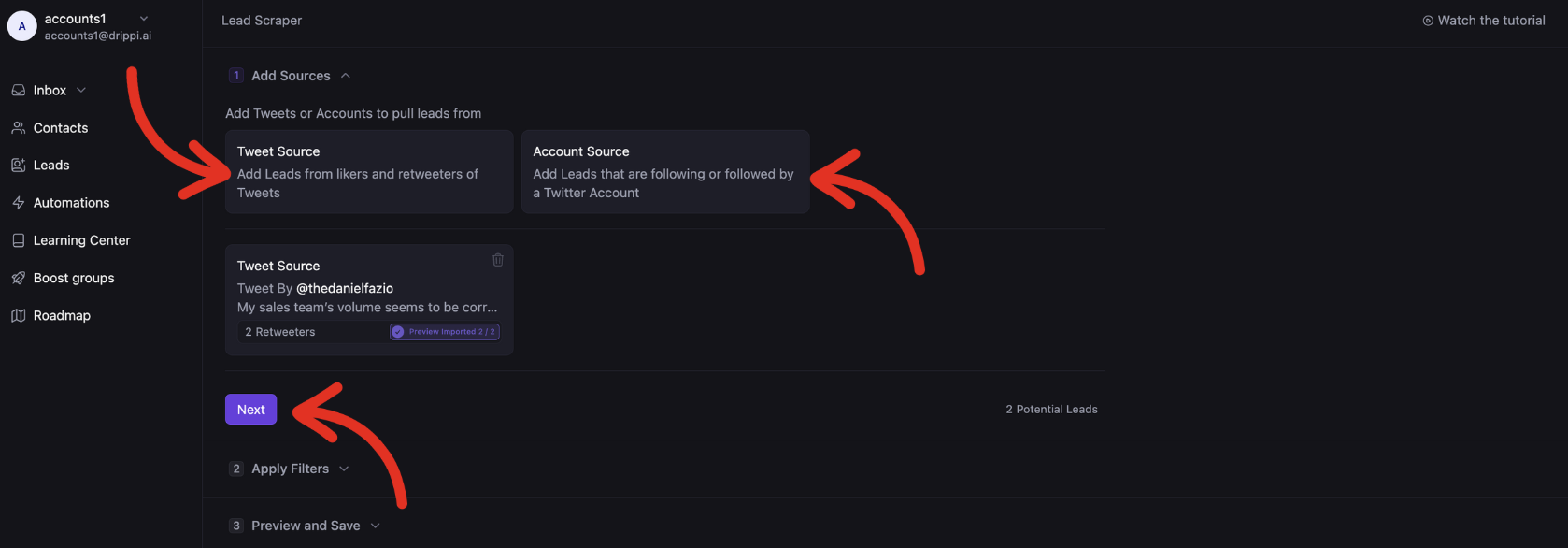 Scroll down on this page for information on how our filters work.
### Account Sources
In the space provided, add a link to any x / twitter of your choice. Then select the data you want to include; following, followers, or both. Then hit *add source*.
Scroll down on this page for information on how our filters work.
### Account Sources
In the space provided, add a link to any x / twitter of your choice. Then select the data you want to include; following, followers, or both. Then hit *add source*.
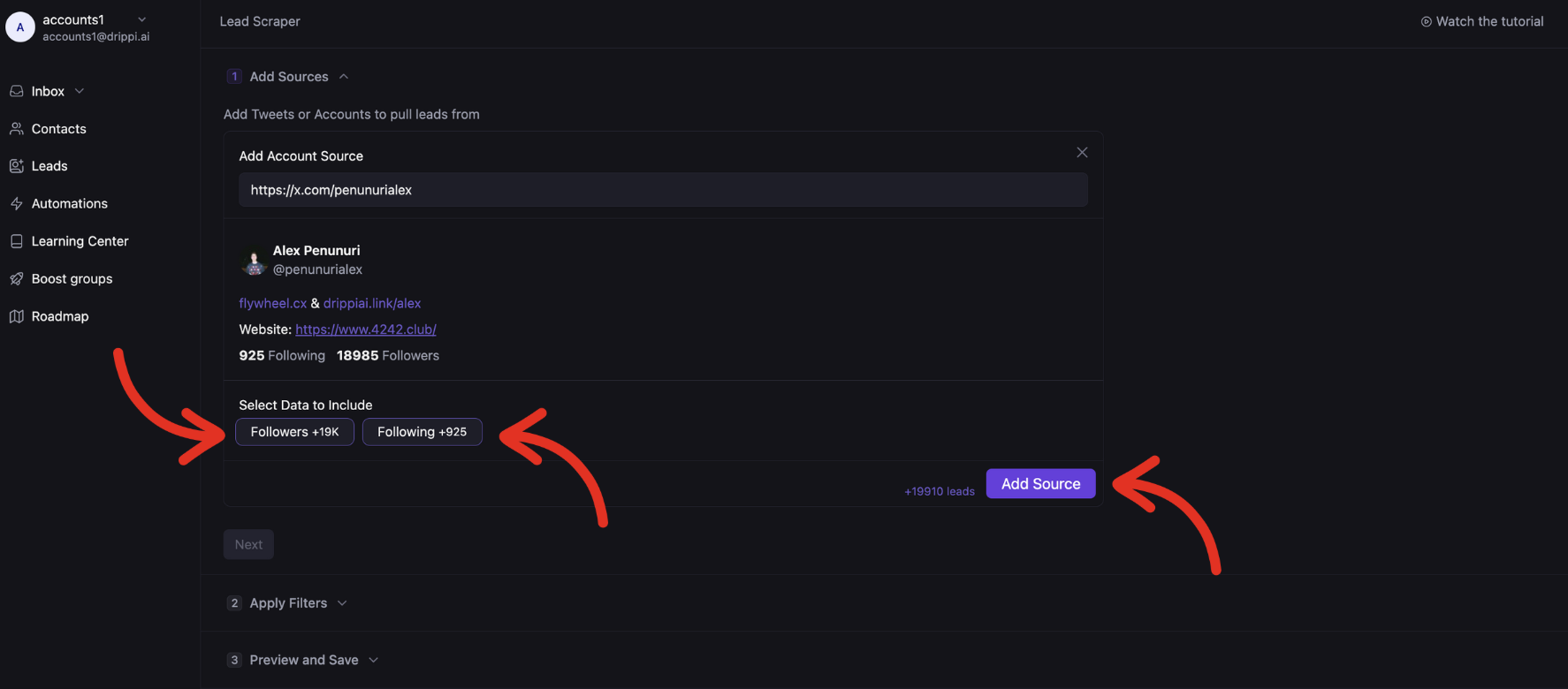 You can then add as many other Tweet or Account sources as you'd like. Once done, hit *next.*
 ## Filters
Add filters to increase the quality of your list by removing unqualified prospects.
### Combining Filters
Understanding how filters can be combined is the most important aspect of creating highly targeted lists
Lets look at some examples:
Elements inside the same bio contents filter are combined using an OR operator. So if we add just this filter. Users whose bios contain “cat” OR “dog” OR “\$” will be included from the list.
## Filters
Add filters to increase the quality of your list by removing unqualified prospects.
### Combining Filters
Understanding how filters can be combined is the most important aspect of creating highly targeted lists
Lets look at some examples:
Elements inside the same bio contents filter are combined using an OR operator. So if we add just this filter. Users whose bios contain “cat” OR “dog” OR “\$” will be included from the list.
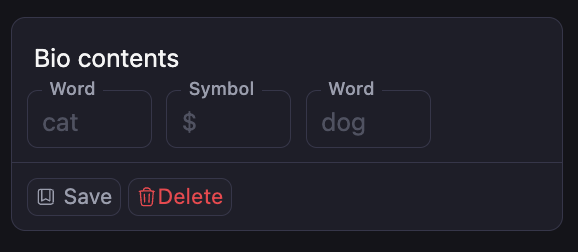 But if we add these filters ⬇️
 The filters are combined using an AND operator. So, only users who’s bios contain “\$” AND “dog” AND “cat” will be be included in our list
### Bio Contents
This filter will remove anyone that does NOT have AT LEAST ONE of the elements added to this filter in their bio.
The filters are combined using an AND operator. So, only users who’s bios contain “\$” AND “dog” AND “cat” will be be included in our list
### Bio Contents
This filter will remove anyone that does NOT have AT LEAST ONE of the elements added to this filter in their bio.
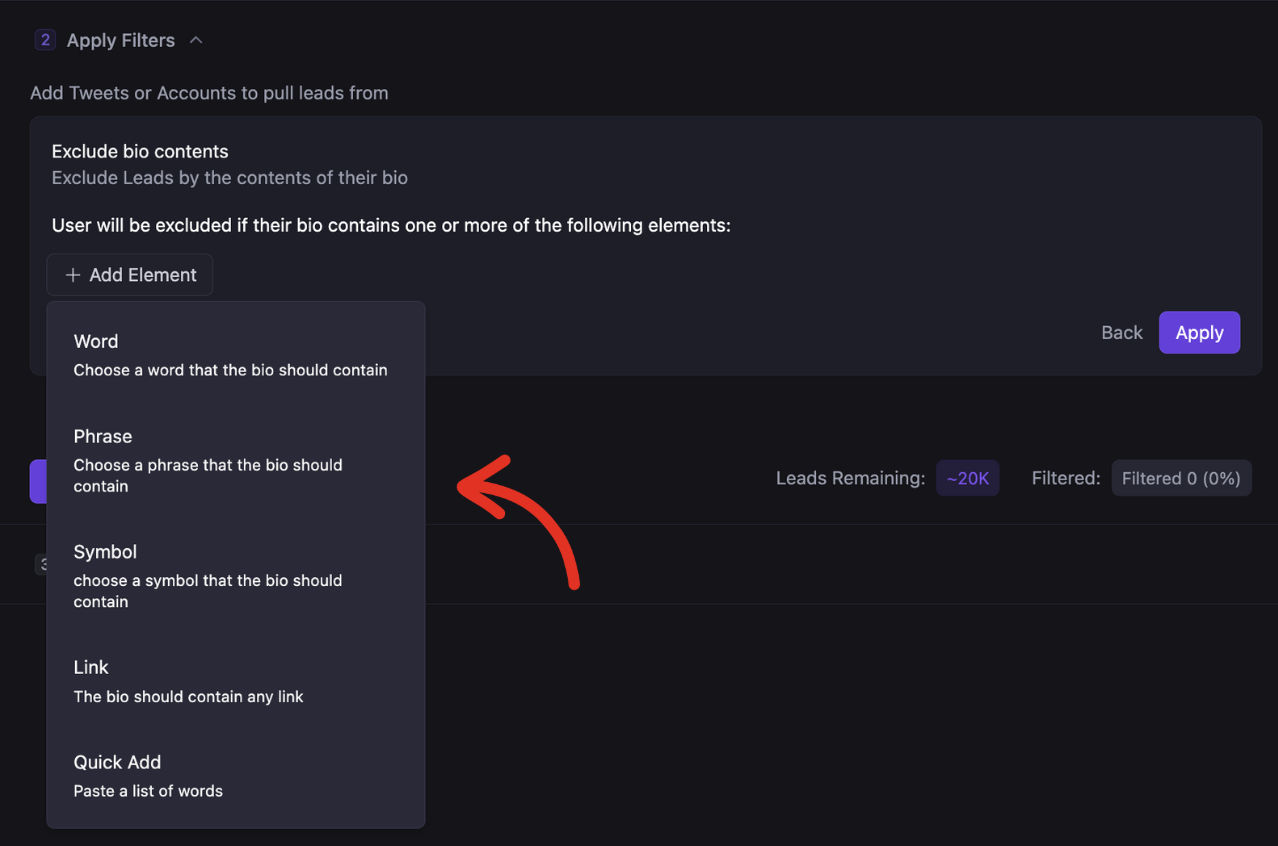
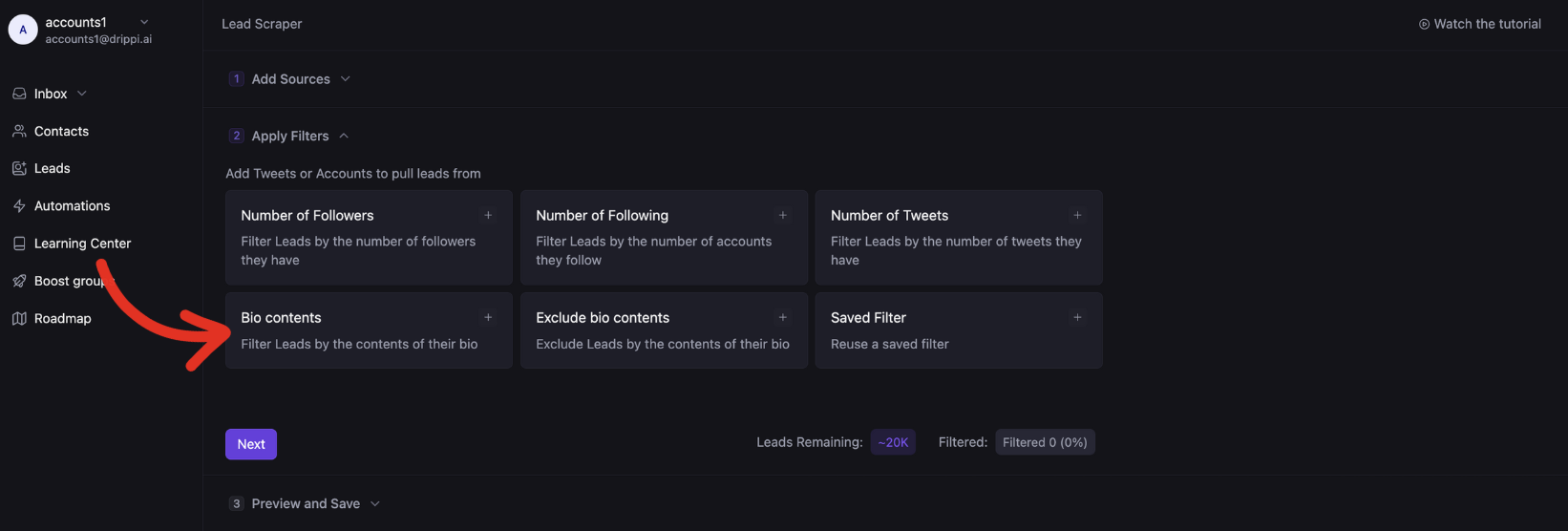 This filter allows words, phrases, symbols, and links. For importing a list, add a comma separated list of keywords through the *Quick Add* element.
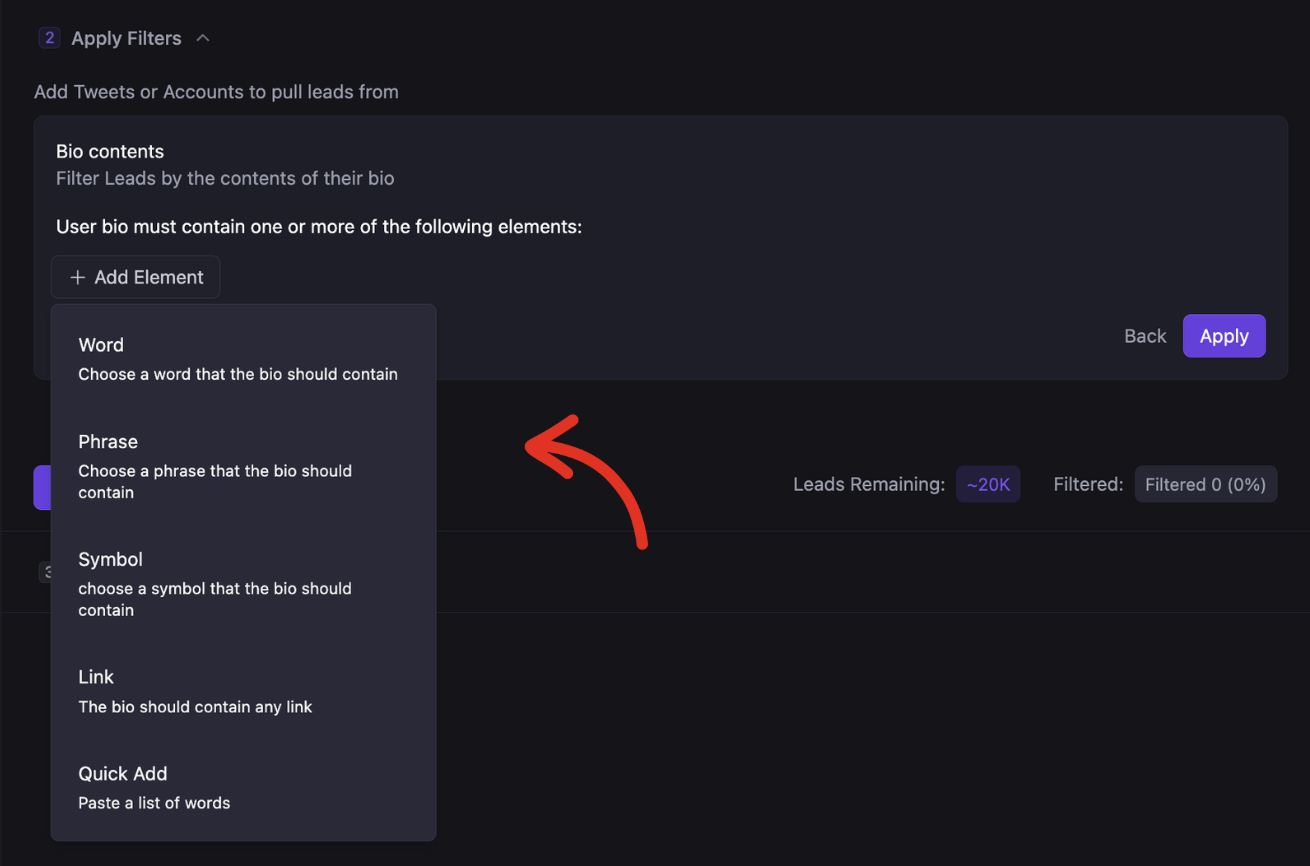 ### Exclude Bio Contents
This filter will remove anyone that HAS have AT LEAST ONE of the elements added to this filter in their bio.
### Exclude Bio Contents
This filter will remove anyone that HAS have AT LEAST ONE of the elements added to this filter in their bio.
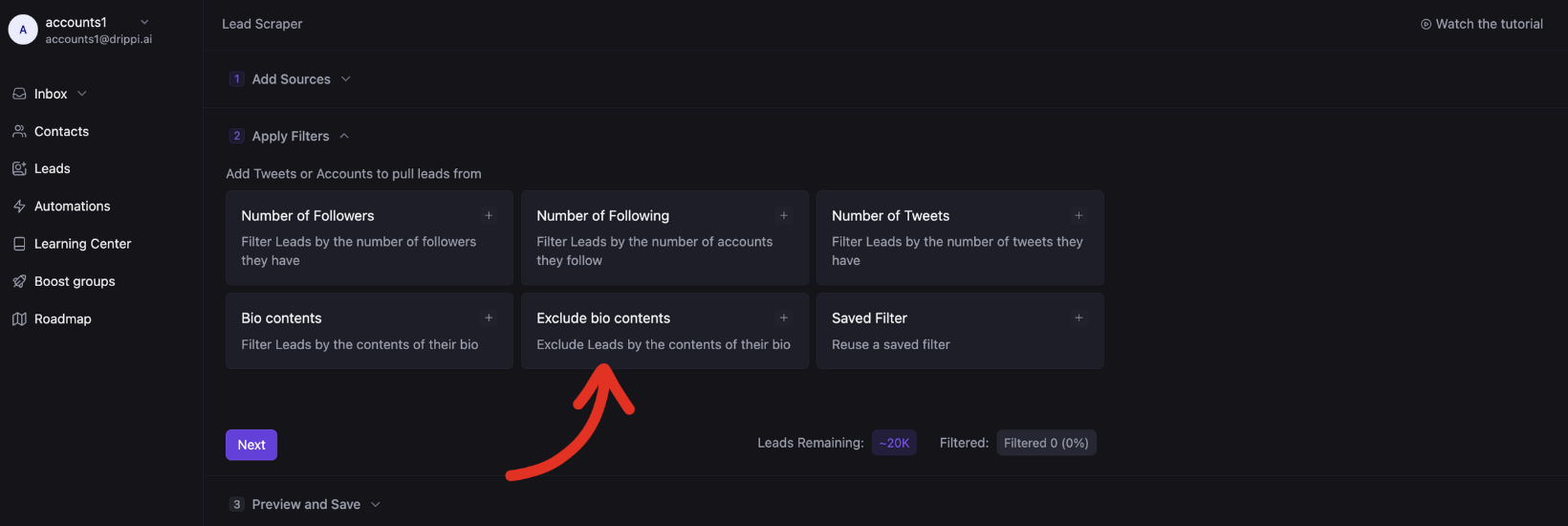 This filter allows words, phrases, symbols, and links. For importing a list, add a comma separated list of keywords through the *Quick Add* element.
 ### Number of Followers & Following
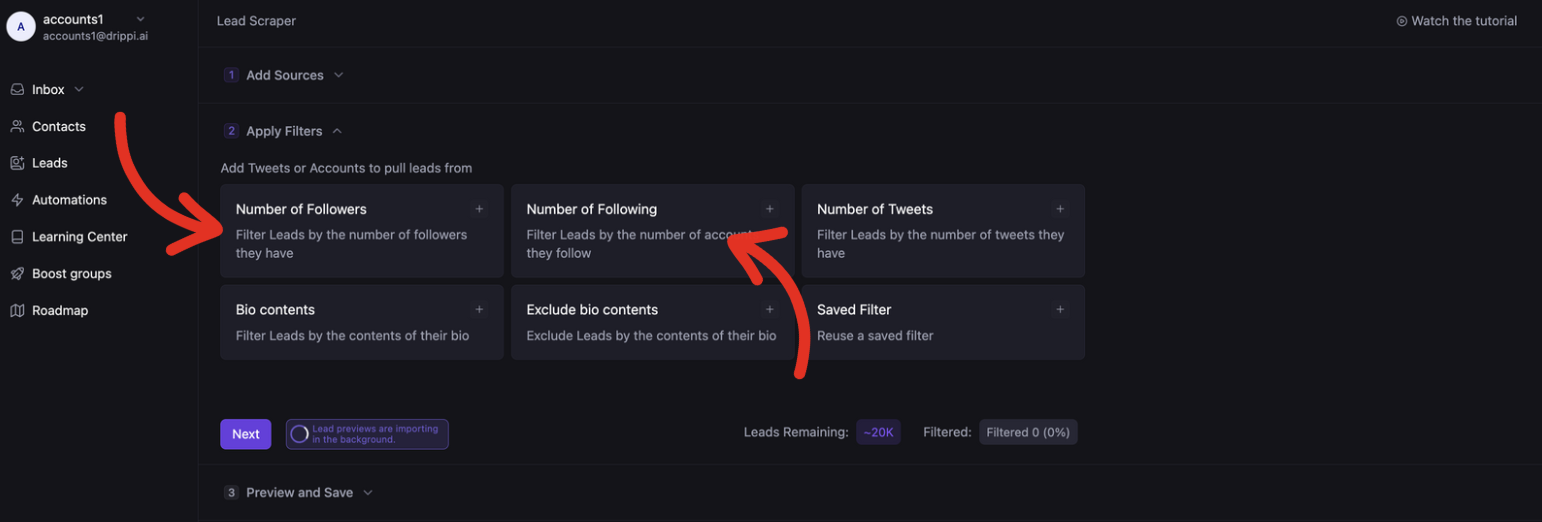
These 2 separate filters allow you to remove anyone that does not have your desired follower or following volume.
### Number of Followers & Following
These 2 separate filters allow you to remove anyone that does not have your desired follower or following volume.
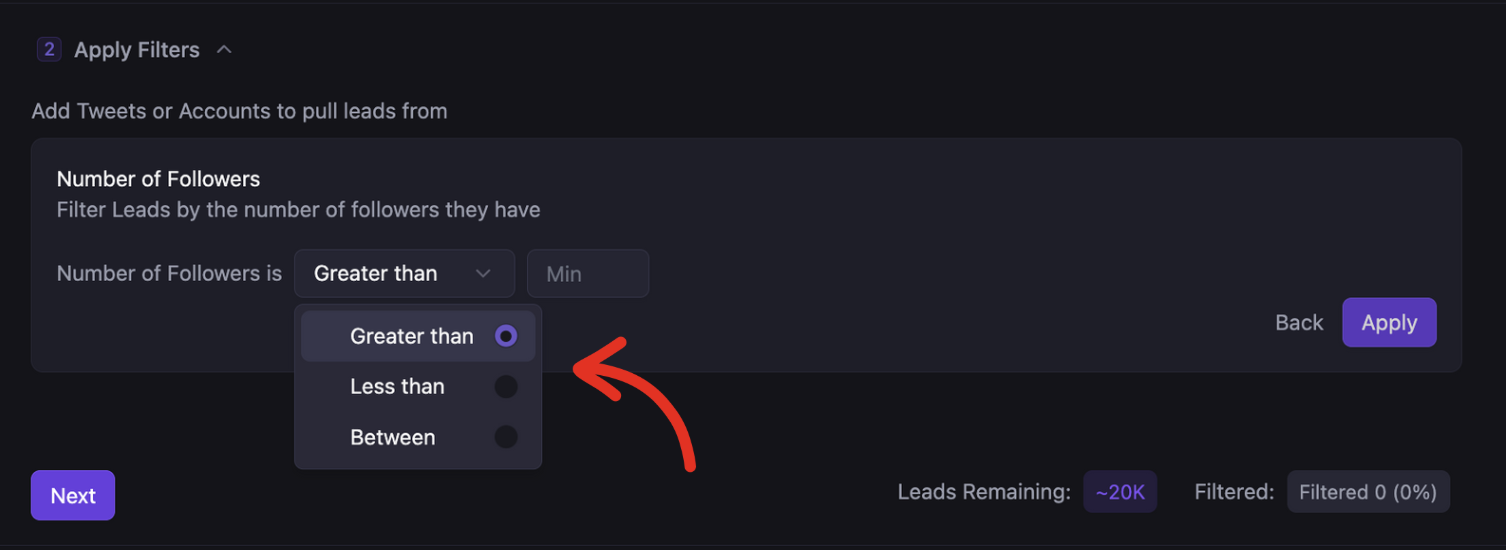
 These filters can be set to: greater than, less than, or between.
 ### Number of Tweets
This filter allows you to remove anyone that doesn't match your desired tweet (post) volume.
### Number of Tweets
This filter allows you to remove anyone that doesn't match your desired tweet (post) volume.
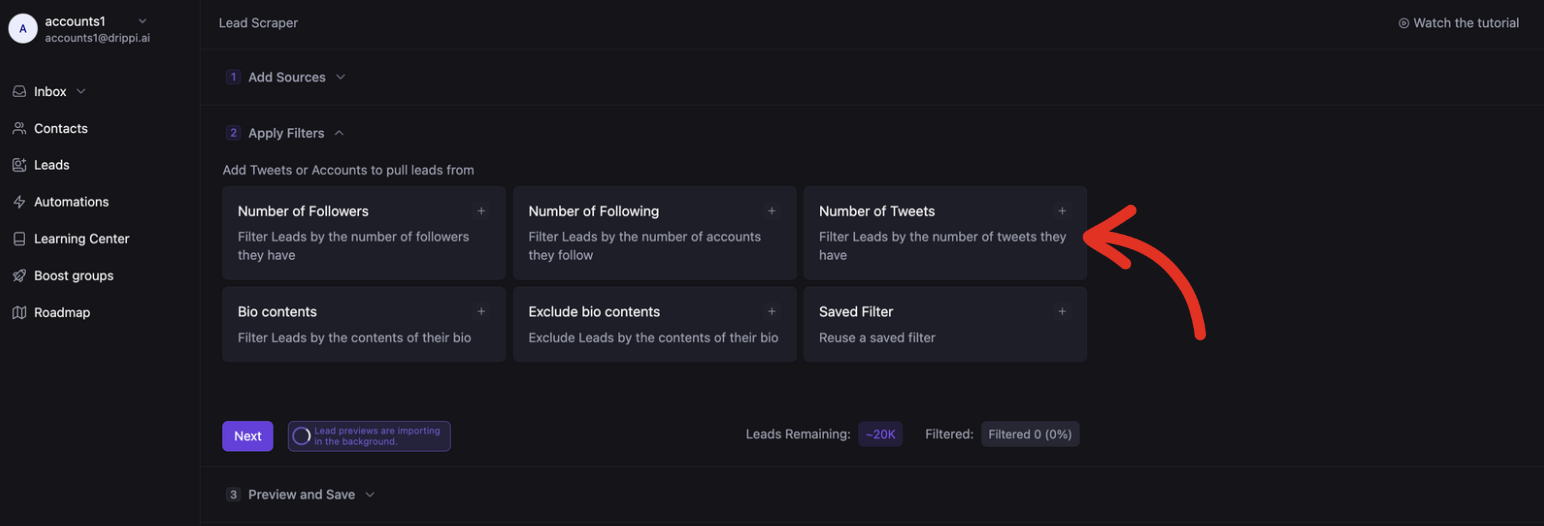 This filter can be set to: greater than, less than, or between.
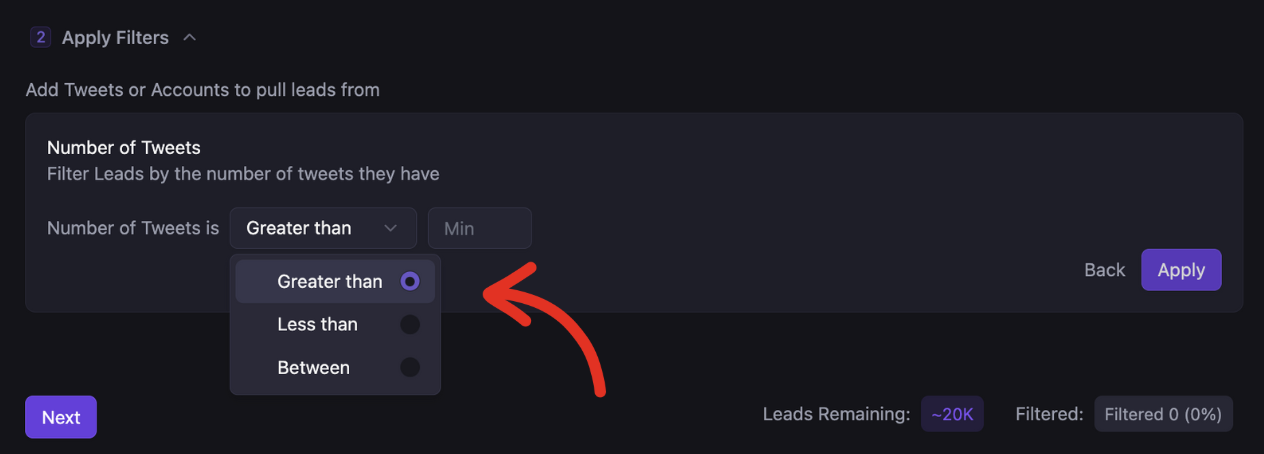 ### Saved Filters
You can save filters by selecting *save* whenever you set up a new filter
### Saved Filters
You can save filters by selecting *save* whenever you set up a new filter
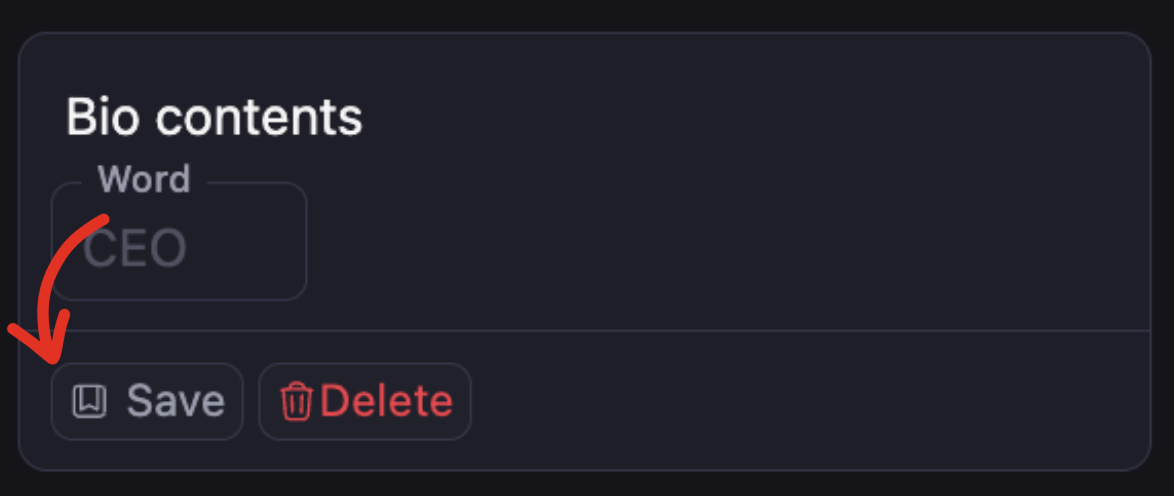 To find your saved filters, hit \_Saved Filter \_and select your desired filters.
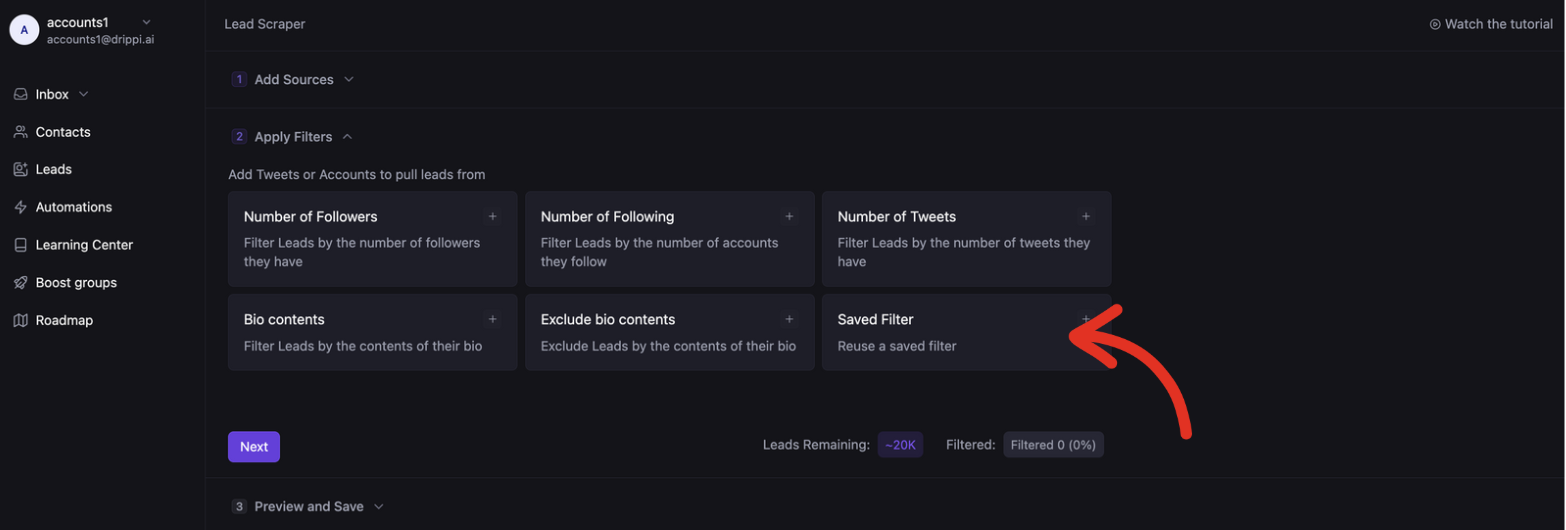 If you have any questions, please reach out to us @ [support@drippi.ai](mailto:support@drippi.ai) or book a call with our customer support team here: [https://cal.com/team/drippi/customer-support-chat](https://cal.com/team/drippi/customer-support-chat)