> ## Documentation Index
> Fetch the complete documentation index at: https://drippi.mintlify.site/llms.txt
> Use this file to discover all available pages before exploring further.
# CSV Import
> How to use Drippi.ai's CSV import feature
## How to Use Drippi's CSV Import Feature (video)
[https://www.youtube.com/watch?v=YNZkV\_d3Luc](https://www.youtube.com/watch?v=YNZkV_d3Luc)
## How to Use Drippi's CSV Import Feature (SOP)
Importing a lead list into drippi by their usernames is fairly straightforward
Just make sure your CSV is formatted similarly to the one you'll find below👇
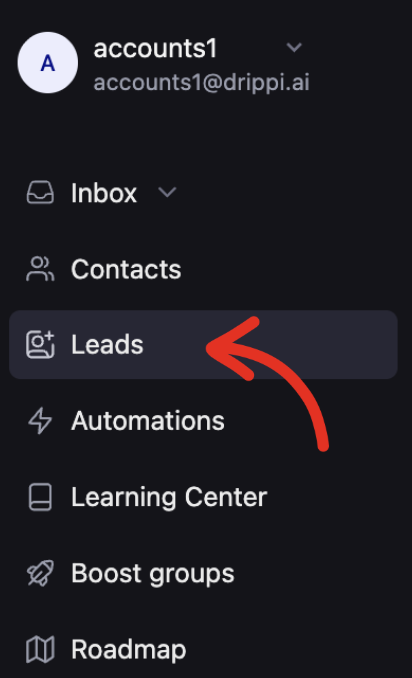
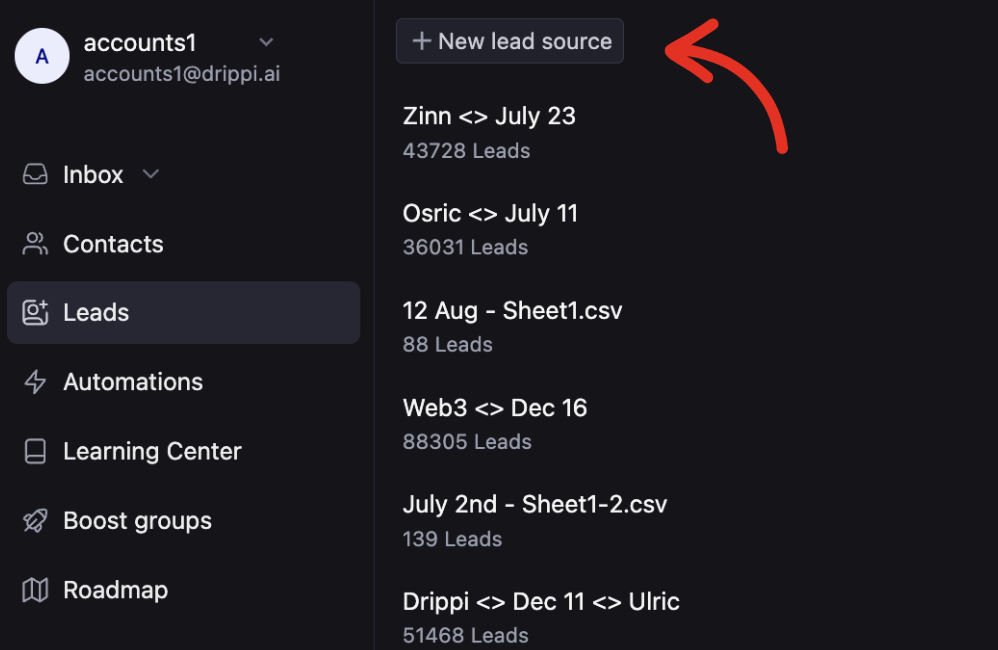
1. Head to the find leads page, then select new lead source.
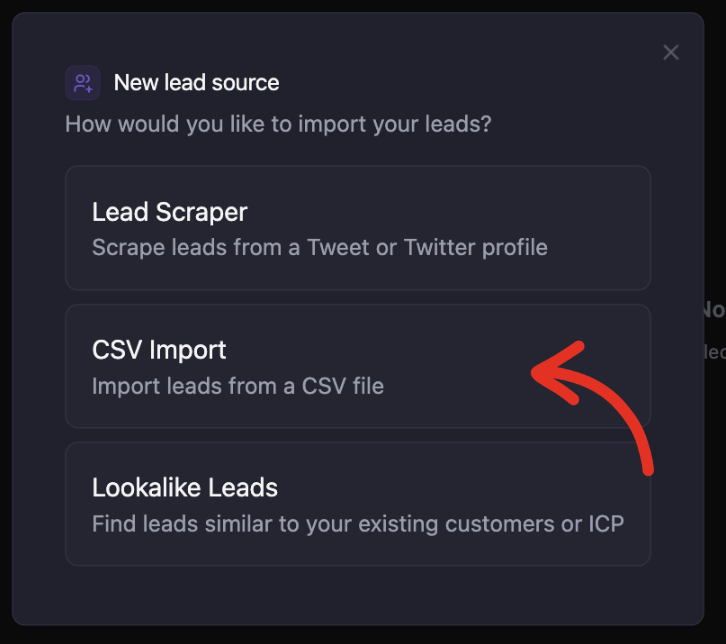
 2. Select CSV import:
 3. Upload a file by selecting "browse files" or by dragging and dropping a CSV file:
 In order to upload a file, it must be in the correct format. Files only NEED usernames. DO NOT INCLUDE "@" symbol or links.\
\
Example: penunurialex NOT @penunurialex NOT [https://twitter.com/penunurialex](https://twitter.com/penunurialex)
Our CSV import system supports the addition of any custom personalization fields you may have, more information on that below.
4. Ensure you select the column containing the list of usernames in the dropdown menu. Then name and save your lead source
In order to upload a file, it must be in the correct format. Files only NEED usernames. DO NOT INCLUDE "@" symbol or links.\
\
Example: penunurialex NOT @penunurialex NOT [https://twitter.com/penunurialex](https://twitter.com/penunurialex)
Our CSV import system supports the addition of any custom personalization fields you may have, more information on that below.
4. Ensure you select the column containing the list of usernames in the dropdown menu. Then name and save your lead source
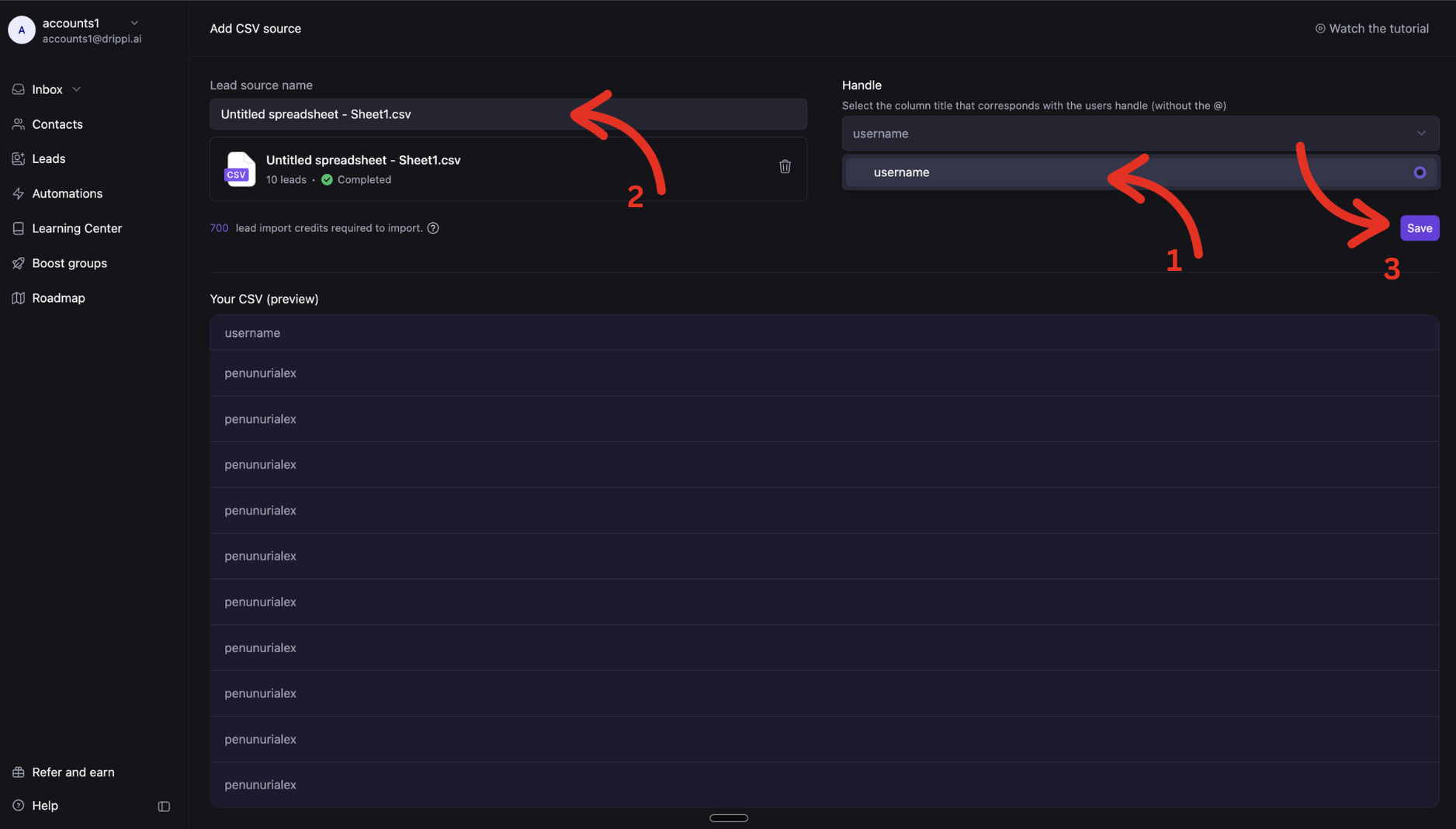 By username we are referring to "handle" or "@" NOT their "name"\
\
Example:
By username we are referring to "handle" or "@" NOT their "name"\
\
Example:
 ## **Importing with Drippi's CSV format**
CSV's that use Drippi's CSV format will be imported much faster and do not require additional lead credits to import.
Here's an example of our required format👇
[https://docs.google.com/spreadsheets/d/1CR8eQECeIezDCas2RBoo7SFhde-fyRfQRKntFinSDss/edit?usp=sharing](https://docs.google.com/spreadsheets/d/1CR8eQECeIezDCas2RBoo7SFhde-fyRfQRKntFinSDss/edit?usp=sharing)
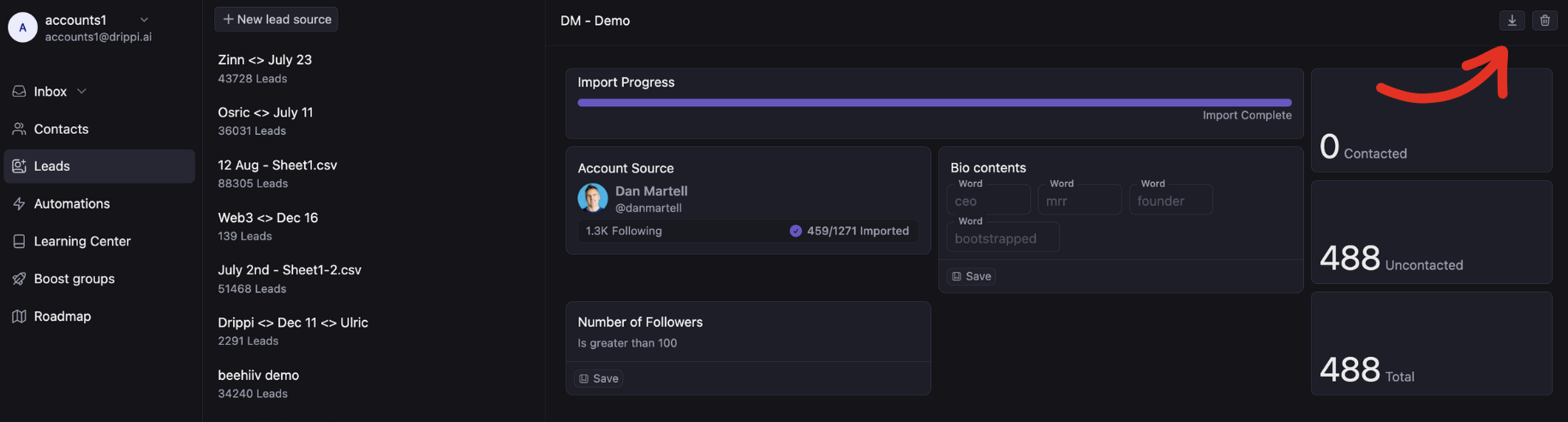
This is the same format that is used when you export leads from Drippi by clicking the download button on the page of that lead source.
## **Importing with Drippi's CSV format**
CSV's that use Drippi's CSV format will be imported much faster and do not require additional lead credits to import.
Here's an example of our required format👇
[https://docs.google.com/spreadsheets/d/1CR8eQECeIezDCas2RBoo7SFhde-fyRfQRKntFinSDss/edit?usp=sharing](https://docs.google.com/spreadsheets/d/1CR8eQECeIezDCas2RBoo7SFhde-fyRfQRKntFinSDss/edit?usp=sharing)
This is the same format that is used when you export leads from Drippi by clicking the download button on the page of that lead source.
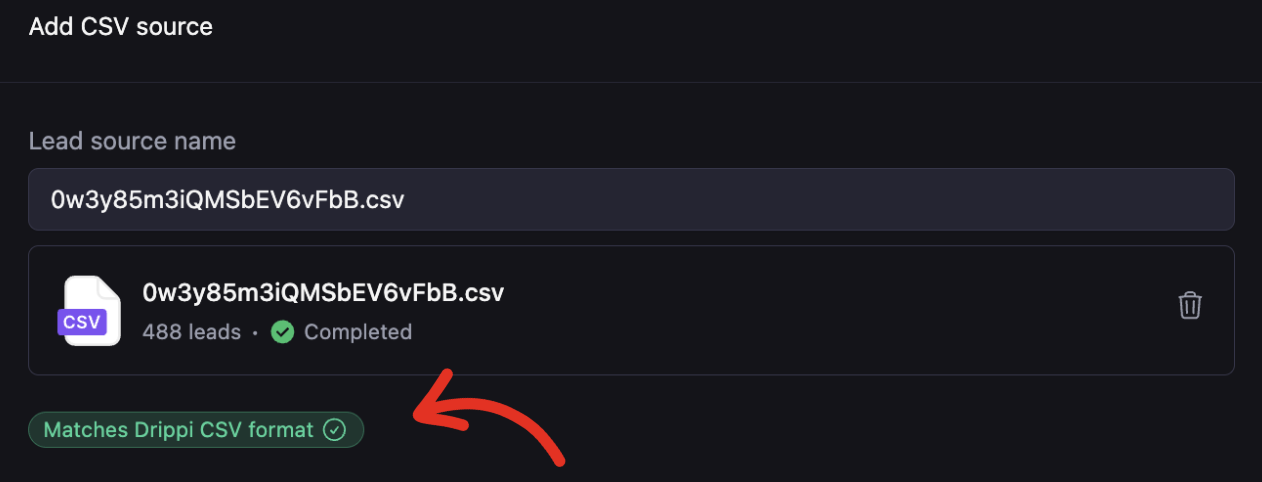
 If your CSV matches Drippi's export format you will see an indicator that verifies your document is formatted correctly:
 To integrate data from external sources into Drippi's system, it's essential to ensure that every field is both accurate and formatted correctly. Uploading data that's incorrect or not properly formatted can disrupt your automation processes or prevent the data from being successfully imported.
## **Importing Custom Variables (Custom Personalization Info)**
Our CSV import system supports the addition of any custom personalization fields you may have.
To include this data in the lead source. verify that the column has a descriptive name and the field exists for every lead.
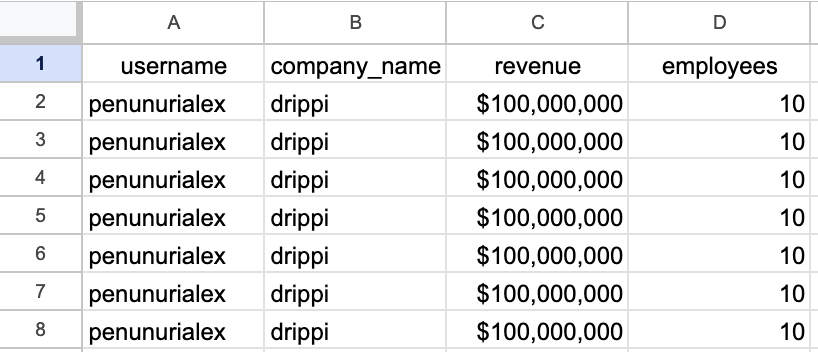
Example:
To integrate data from external sources into Drippi's system, it's essential to ensure that every field is both accurate and formatted correctly. Uploading data that's incorrect or not properly formatted can disrupt your automation processes or prevent the data from being successfully imported.
## **Importing Custom Variables (Custom Personalization Info)**
Our CSV import system supports the addition of any custom personalization fields you may have.
To include this data in the lead source. verify that the column has a descriptive name and the field exists for every lead.
Example:
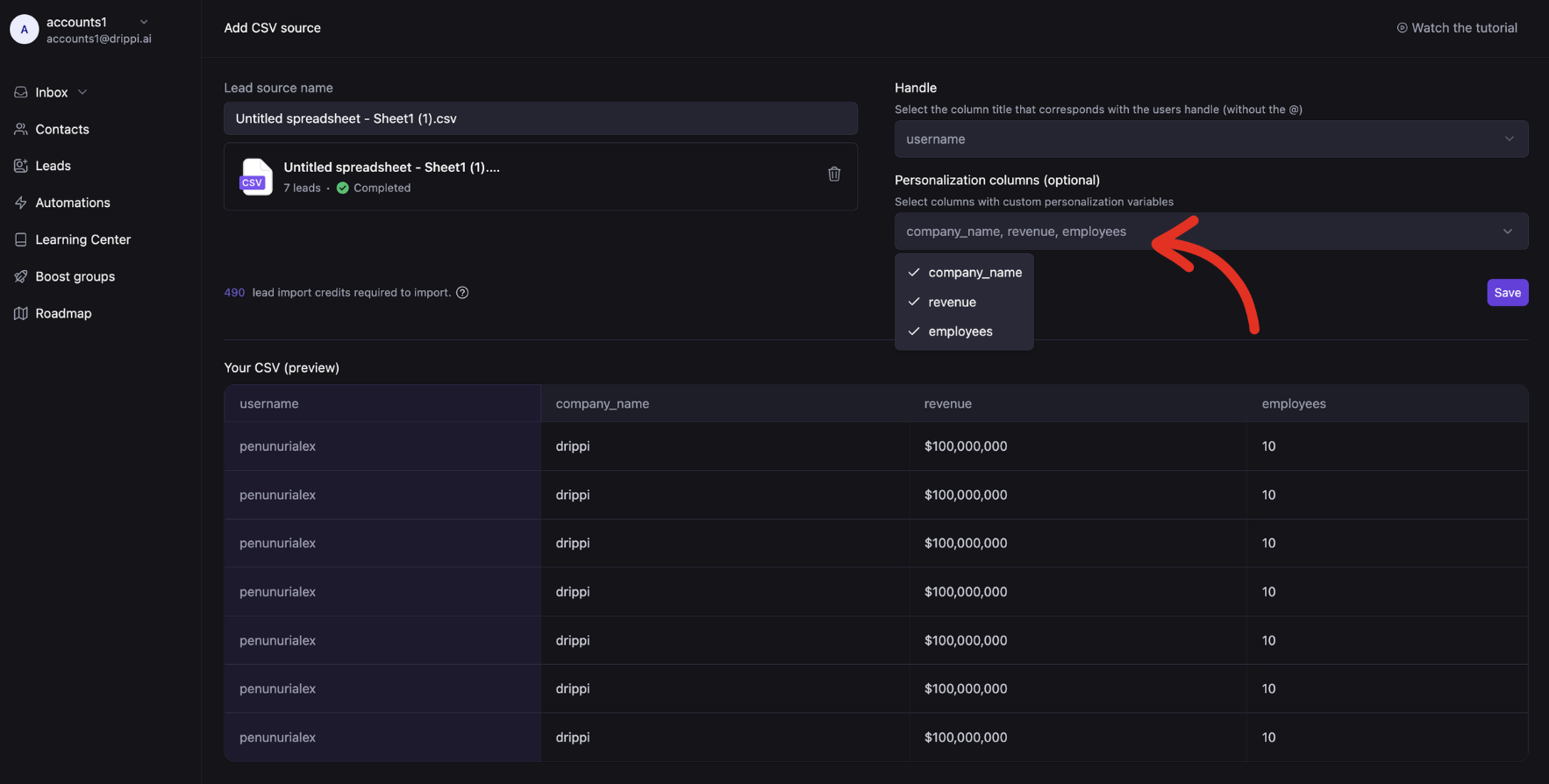
 Then after uploading your data, select the custom variables you would like to import.
 **Incomplete personalization in your CSV can disrupt your campaigns.**
Ensure every lead has the necessary custom data before using the variable.
If you have any questions, please reach out to us @ [support@drippi.ai](mailto:support@drippi.ai) or book a call with our customer support team here: [https://cal.com/team/drippi/customer-support-chat](https://cal.com/team/drippi/customer-support-chat)
**Incomplete personalization in your CSV can disrupt your campaigns.**
Ensure every lead has the necessary custom data before using the variable.
If you have any questions, please reach out to us @ [support@drippi.ai](mailto:support@drippi.ai) or book a call with our customer support team here: [https://cal.com/team/drippi/customer-support-chat](https://cal.com/team/drippi/customer-support-chat)