> ## Documentation Index
> Fetch the complete documentation index at: https://drippi.mintlify.site/llms.txt
> Use this file to discover all available pages before exploring further.
# How To Connect Accounts To Drippi
> Guide to connecting and reconnecting X accounts from Drippi
## Connecting Your X Account
Open up settings and navigate to the \_accounts \_section:
[https://www.app.drippi.ai/settings/accounts](https://www.app.drippi.ai/settings/accounts)
Look for a button that says: *+ Connect New X Account*
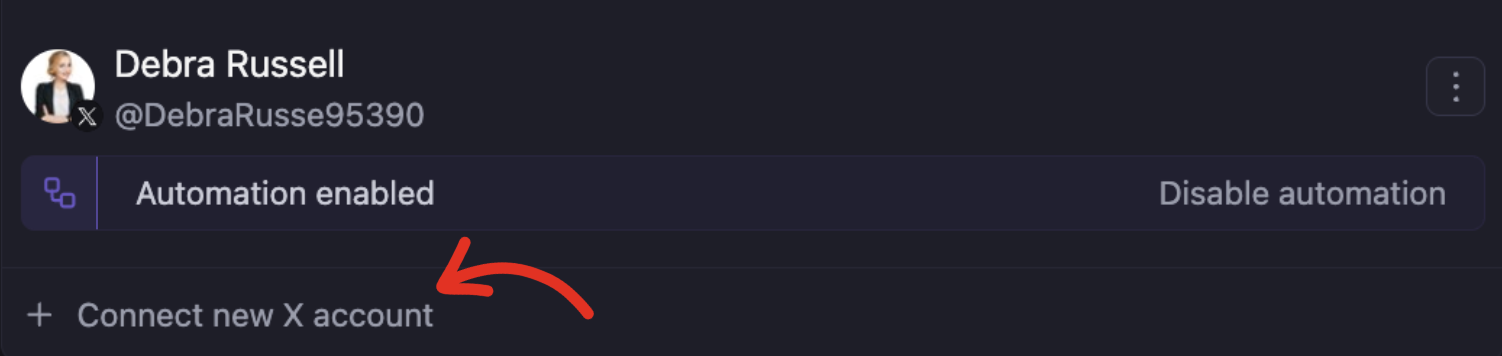 If you already have accounts connected, it should appear under your last account.
As soon as you click that button, either a pop-up will appear, or the pop-up will open up in a new tab.
If you already have accounts connected, it should appear under your last account.
As soon as you click that button, either a pop-up will appear, or the pop-up will open up in a new tab.
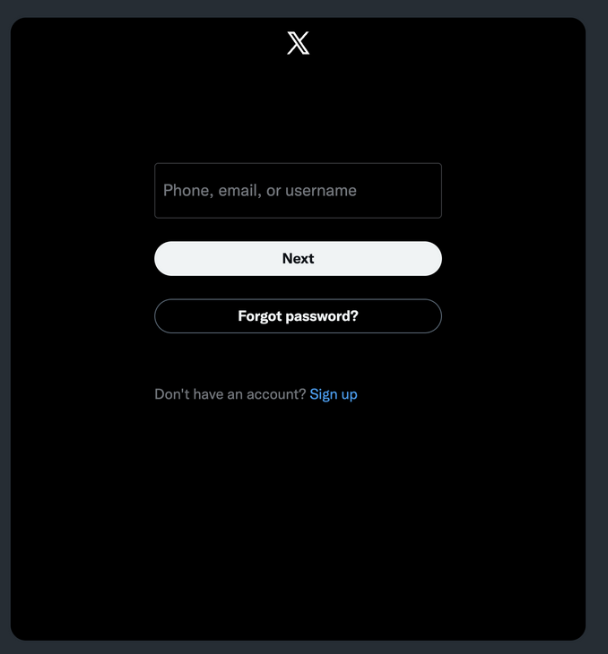 MANUALLY (no password managers) enter your username, password, and 2fa codes if applicable.
## **Account Connection Troubleshooting**
If you get any error when trying to connect any of your accounts, please take the following steps:
1. Make sure you’re NOT using any password managers
2. Make sure you’re using the correct USERNAME to sign in
3. Make sure you’re using the CORRECT password to sign in
If none of these are the issue:
4. Log into X / Twitter regularly, change your password, then try connecting your account to Drippi using the new password.
If none of these work, please reach out to us @ [support@drippi.ai](mailto:support@drippi.ai)
## **Reconnecting Accounts**
Whenever an account's been disconnected, you can reconnect it by navigating to your settings, and clicking on the \_accounts \_section:
[https://www.app.drippi.ai/settings/accounts](https://www.app.drippi.ai/settings/accounts)
Then, locate the disconnected account and click on the 3 vertical dots in the upper right corner:
MANUALLY (no password managers) enter your username, password, and 2fa codes if applicable.
## **Account Connection Troubleshooting**
If you get any error when trying to connect any of your accounts, please take the following steps:
1. Make sure you’re NOT using any password managers
2. Make sure you’re using the correct USERNAME to sign in
3. Make sure you’re using the CORRECT password to sign in
If none of these are the issue:
4. Log into X / Twitter regularly, change your password, then try connecting your account to Drippi using the new password.
If none of these work, please reach out to us @ [support@drippi.ai](mailto:support@drippi.ai)
## **Reconnecting Accounts**
Whenever an account's been disconnected, you can reconnect it by navigating to your settings, and clicking on the \_accounts \_section:
[https://www.app.drippi.ai/settings/accounts](https://www.app.drippi.ai/settings/accounts)
Then, locate the disconnected account and click on the 3 vertical dots in the upper right corner:
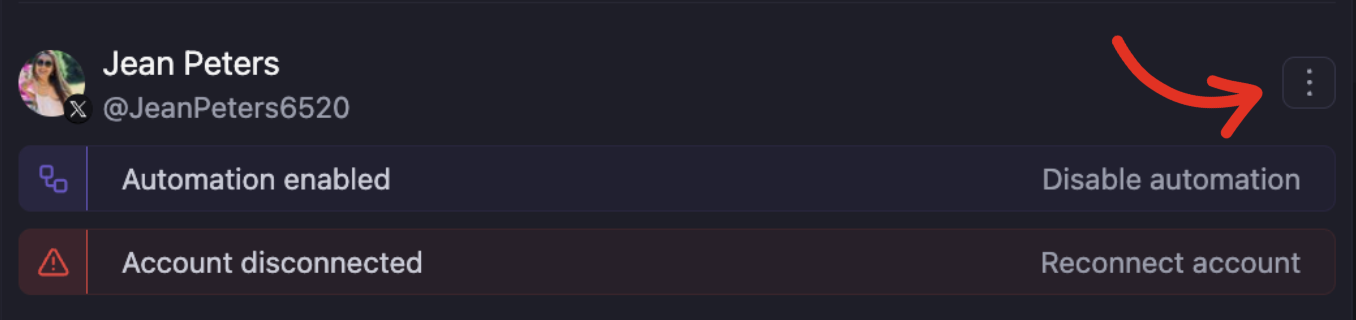 Then click *reconnect.*
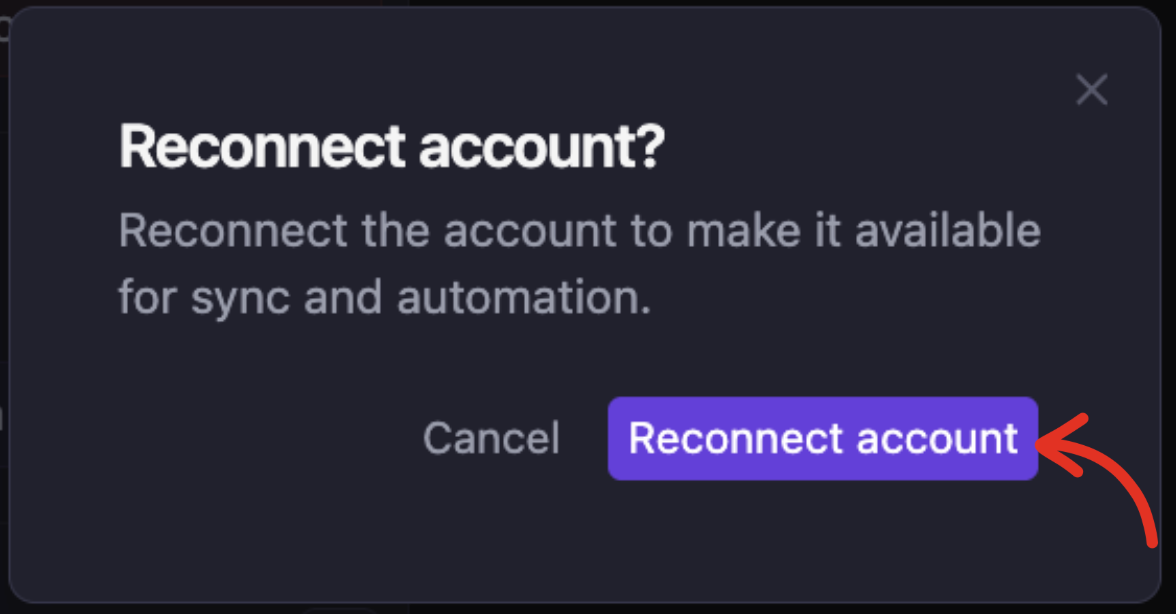
 And then clicking "reconnect account" once again
 A couple things can happen:
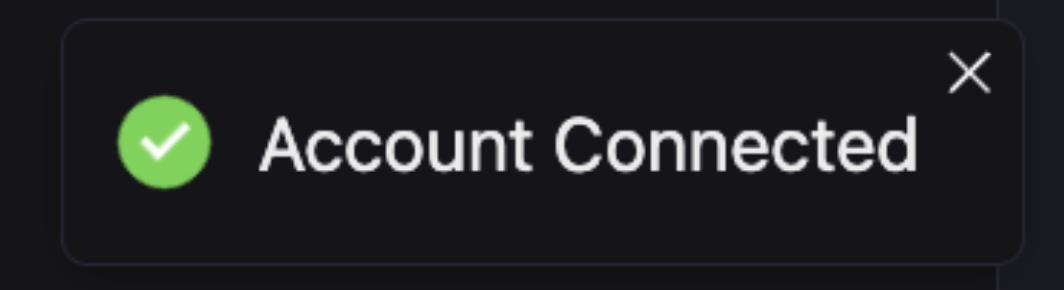
1. The account gets reconnected instantly, removing the \_account disconnected \_banner, and you’ll see an *account connected* notification in the top left corner.
A couple things can happen:
1. The account gets reconnected instantly, removing the \_account disconnected \_banner, and you’ll see an *account connected* notification in the top left corner.

 Before moving on to step 2, please make sure the account hasn’t been banned by checking its status directly on X / Twitter.
2. The account does NOT get reconnected instantly, the X / Twitter login pop-up shows up again, you type in your password, and then another 2 things can happen:
1. Your account gets reconnected; or
2. You’ll need to pass an arcane puzzle to prove you’re human, and then your account will be reconnected.
If you have any questions, please reach out to us @ [support@drippi.ai](mailto:support@drippi.ai) or book a call with our customer support team here: [https://cal.com/team/drippi/customer-support-chat](https://cal.com/team/drippi/customer-support-chat)
Before moving on to step 2, please make sure the account hasn’t been banned by checking its status directly on X / Twitter.
2. The account does NOT get reconnected instantly, the X / Twitter login pop-up shows up again, you type in your password, and then another 2 things can happen:
1. Your account gets reconnected; or
2. You’ll need to pass an arcane puzzle to prove you’re human, and then your account will be reconnected.
If you have any questions, please reach out to us @ [support@drippi.ai](mailto:support@drippi.ai) or book a call with our customer support team here: [https://cal.com/team/drippi/customer-support-chat](https://cal.com/team/drippi/customer-support-chat)